
Datatruck allows you to create custom document folders to organize files for seven different entity types: Driver, Truck, Trailer, MC Number, Customer, Vendor, and Load.
You can create as many folders as needed for each entity type. Once created, the folder will appear in the Documents tab of every profile under that entity type.
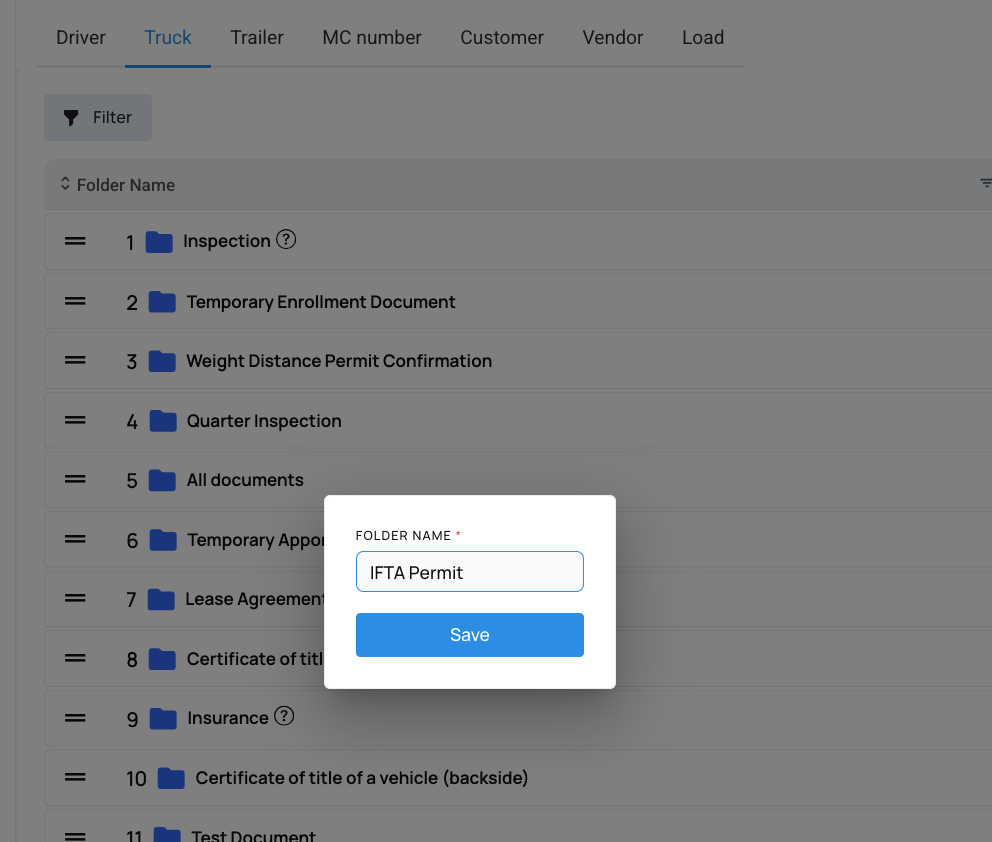
For example, if you create a folder called "IFTA Permit" under Trucks, that folder will appear in the Documents tab of every truck profile in your system.
Step 1: Go to Settings > Documents
Navigate to Settings from the left sidebar, then click on Documents.
Step 2: Select the Entity Type
At the top of the Documents settings page, you will see tabs for each entity type:
- Driver
- Truck
- Trailer
- MC Number
- Customer
- Vendor
- Load
Click the tab for the entity type you want to create a folder for.
Step 3: Create the Folder
Click the Create button, enter a name for the folder, then click Save.
Step 4: Confirm It Appears in Profiles
Once saved, the new folder will appear in the Documents tab of every profile under that entity type. For example, a folder created under the Truck tab will be visible in the Documents tab of every truck profile
We hope this article was helpful. However, if you have any further questions, please don't hesitate to reach out to our Live Support.
Comments
0 comments
Please sign in to leave a comment.