
Carrier payroll tracks payments owed to external carriers for loads they hauled on your behalf.
Where: Payroll > Carrier
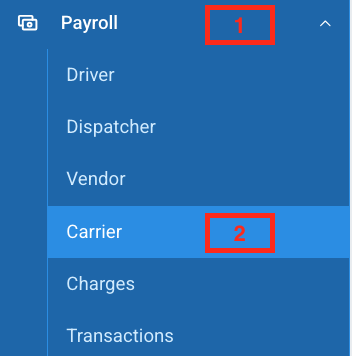
How to Create a Carrier Batch
- Go to Payroll > Carrier
- Click Create New Batch
- Select the date range and MC Number
- Add the carrier's trips to the batch
- Open the batch to review
What's Inside a Carrier Settlement
Each carrier settlement contains:
Earnings Summary:
- Earnings: total amount owed to the carrier
- Other Pay: any additional charges
- Deductions: any amounts deducted
- Net Pay: final amount to pay the carrier
Tabs Inside the Statement
Trips: all loads the carrier hauled, showing Trip ID, Load #, Status, Pickup, Delivery, Pay, Expense, and Miles per trip. Click Add Trips to include additional trips, or Remove Trips to take one out.
Payments: record payments made to the carrier directly within the settlement. Click Add Payment to log a check, ACH, or other payment type with the date and amount.
Attachments: upload supporting documents such as rate confirmations, PODs, or invoices. Click "Add Attachment" to upload a file directly to the settlement for reference.
Finalizing
- Click download icon to web-view the PDF or download it.
- Click Post to lock the carrier settlement
- Click Send to Carrier to deliver the statement
How to Mark a Payment
- Click Mark a Payment in the top right
- Enter the date, amount, and payment type: the amount is pre-filled with what's still owed
- Add a note if needed and click Mark a Payment
Once the total payments match the settlement amount, the status automatically updates to Paid.
We hope this article was helpful. However, if you have any further questions, please don't hesitate to reach out to our Live Support.
Comments
0 comments
Please sign in to leave a comment.