
Keeping track of document expirations is essential to avoid compliance issues and keep your fleet running smoothly. Datatruck makes this easy by allowing you to view warnings and expiry dates directly in the columns.
Follow the steps below to enable and view these warnings:
For Drivers
-
Go to the Drivers section from the left-hand menu.
-
Click on the “Columns” button at the top right.
-
Toggle on the Warnings column.
-
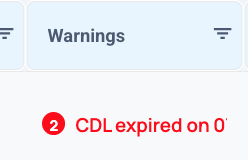
This will display upcoming or expired items such as license expiry, medical cards, or other important documents.
-
For Trucks
-
Go to the Trucks section.
-
Click on the “Columns” button.
-
Toggle on the Warnings column.
-
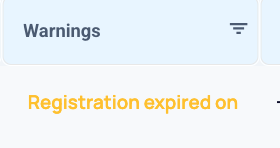
It will show relevant alerts like registration, insurance, or inspection issues for each truck.
-
For Trailers
-
Navigate to the Trailers section.
-
Click “Columns.”
-
Toggle on the following columns to track specific expirations dates:
-
Registration Expiry Date
-
Insurance Expiry Date
-
Annual Inspection Expiry Date
-
We hope this article was helpful. However, if you have any further questions, please don't hesitate to reach out to our Live Support.
Comments
0 comments
Please sign in to leave a comment.