
Follow these steps to add a new trailer to Datatruck.
Step 1: Open Fleet Management
Go to the Fleet Management section and click Create Trailer in the upper-right corner.
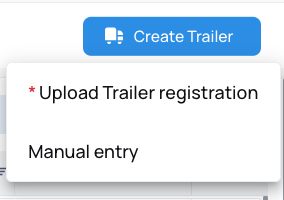
Step 2: Enter Trailer Details
Fill in the trailer's information, including:
- Make and model
- Trailer type
- Ownership type
- VIN number
- Production year
- Plate number and plate state
- Unit number
Some fields are required, while others are optional — fill in as much detail as you'd like.
Step 3: Set Ownership and Upload Documents
Select the trailer's ownership type:
- Company-owned
- Owner-operator driver
- Lease operator
- Rental unit
Then upload the relevant documents, such as:
- Trailer registration
- Insurance documents
- Inspection card
- Rental agreement (if the trailer is rented from a third party)
Step 4: Save and Confirm
Click Save to add the trailer to your fleet. The new trailer will now appear in your trailer list, where you can access its information anytime.
We hope this article was helpful. However, if you have any further questions, please don't hesitate to reach out to our Live Support.
Comments
0 comments
Please sign in to leave a comment.