
Integrating Fleetio with your Datatruck account allows you to sync important fleet management data seamlessly. This guide walks you through the setup process step by step.
Step-by-Step Integration Guide
1. Navigate to Integration Settings
From the left sidebar, select:
Settings > Integrations > Other > Fleetio
2. Add a New Integration
You’ll see a list of existing integrations (if any).
Click the plus (+) icon or Create New to open the Fleetio integration screen.
3. Enter Fleetio Integration Details
Fill out the form on the right side of the screen:
MC Number: Select the relevant MC number
Name: Enter a recognizable name (e.g., Fleetio Main Account)
API Key: Paste your Fleetio API Key
Token: Paste your Fleetio Token
4. Save the Integration
Click Save to establish the connection
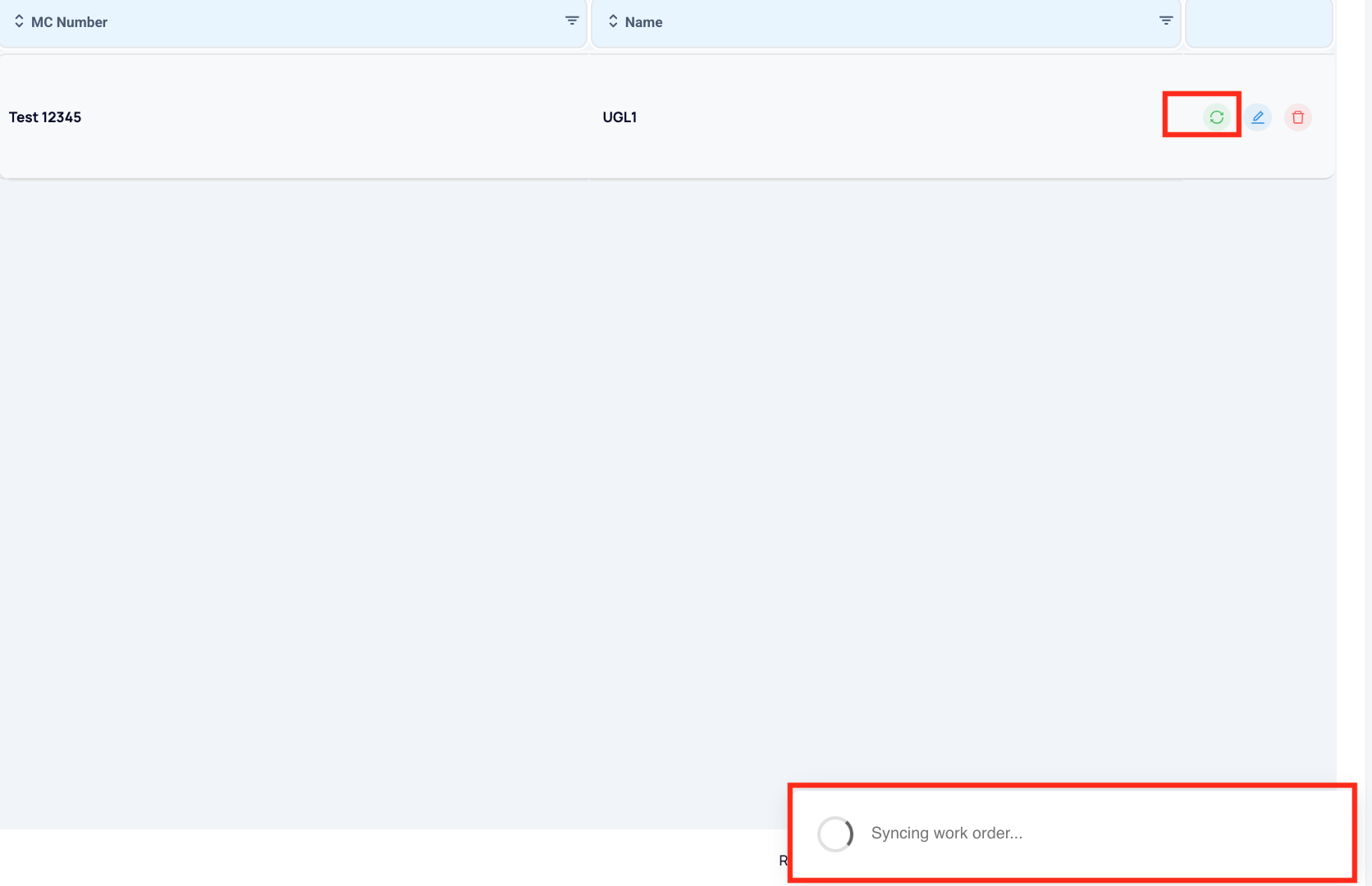
5. Sync Work Orders
- Go back to the list and click in green sync button to show the work orders
Where to Find the Fleetio API Key and Token
You can obtain these directly in your Fleetio account:
Log in to Fleetio
Locate or generate:
API Key
Token
If you can’t find them, check Fleetio’s documentation or contact your Fleetio representative.
We hope this article was helpful. However, if you have any further questions, please don't hesitate to reach out to our Live Support.
Comments
0 comments
Please sign in to leave a comment.