
If you’re migrating payroll data or need to update a driver’s past earnings, Datatruck makes it simple to input Year-to-Date (YTD) earnings manually. This ensures financial reports stay accurate and complete.
Follow the steps below to add past YTD Driver Earnings in the Datatruck system:
Step-by-Step Instructions
1. Navigate to HR Management
From the left sidebar, click on HR Management.
2. Select Drivers
Under HR Management, click on Drivers to view the list of all drivers in the system.
3. Open the Driver's Profile
Click on the driver whose YTD earnings you want to update.
4. Go to the Statistics Tab
At the top of the driver profile screen, click on the Statistics tab.
5. Enter Past YTD Details
On the right side, locate the Make Opening YTD section.
Fill in the following fields:
Created Date: Set the date you’re entering these values (e.g., 09/12/2025).
Earnings: Enter the total earnings YTD.
Reimbursements: If applicable, enter reimbursement amounts.
Advances: Add any cash advances given.
Deductions: Input total deductions.
Other Pay: Any additional pay not categorized above.
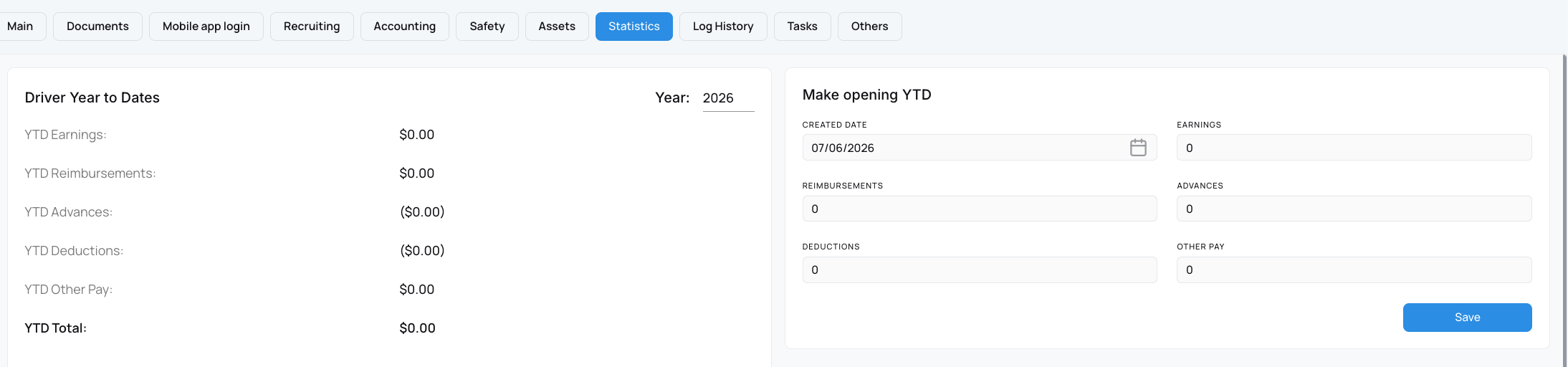
6. Save the Record
After entering all necessary data, click the Save button at the bottom right.
It will appear in Driver Year To Date Section within Statistics.
It will also be displayed in the driver statement.
We hope this article was helpful. However, if you have any further questions, please don't hesitate to reach out to our Live Support.
Comments
0 comments
Please sign in to leave a comment.