
Assigning the right HR Manager and Safety Manager to each driver in Datatruck ensures proper oversight, communication, and compliance across your fleet. This quick guide walks you through the steps to assign these roles to a driver profile in the HR Management section of Datatruck.
Step 1: Navigate to the Driver Profile
Go to the HR Management module in the left-hand sidebar.
Select Drivers from the dropdown.
Click on the driver you want to edit.
Step 2: Locate the Assignments Section
On the right side of the driver’s profile, locate the Assignments section.
This section contains options for:
Assigned Truck
Assigned Trailer
Assigned Dispatcher
HR Manager
Safety Manager
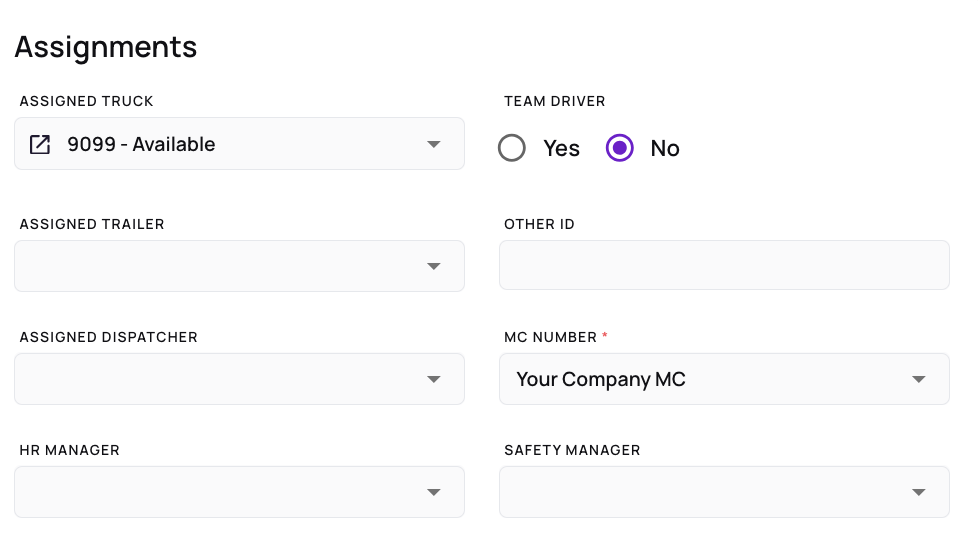
Step 3: Assign the HR Manager
Find the field labeled HR Manager.
Click on the dropdown or begin typing the name of the HR Manager.
Select the appropriate person from the list.
The selection will automatically save once you click Save at the top right of the page.
Step 4: Assign the Safety Manager
Besides the HR Manager field, locate Safety Manager.
Choose the relevant Safety Manager from the dropdown list.
3. Confirm your selection by clicking Save.
We hope this article was helpful. However, if you have any further questions, please don't hesitate to reach out to our Live Support.
Comments
0 comments
Please sign in to leave a comment.