
In Datatruck, Customers can refer to Brokers, Shippers, or Carriers you work with. Adding customers accurately ensures smooth billing, invoicing, and communication throughout your operations.
You can create customers in the system using two methods:
-
Directly from the CRM (Customer Relationship Management) section.
-
During Load Creation.
Option 1: Create a Customer from CRM
Follow the steps below to manually create a customer through the CRM section.
Step 1: Go to Customer Management
-
From the left-hand menu, navigate to CRM.
-
Click Customers.
-
Click the Create New button at the top-right corner to add a new customer.
Step 2: Enter Customer and Billing Details
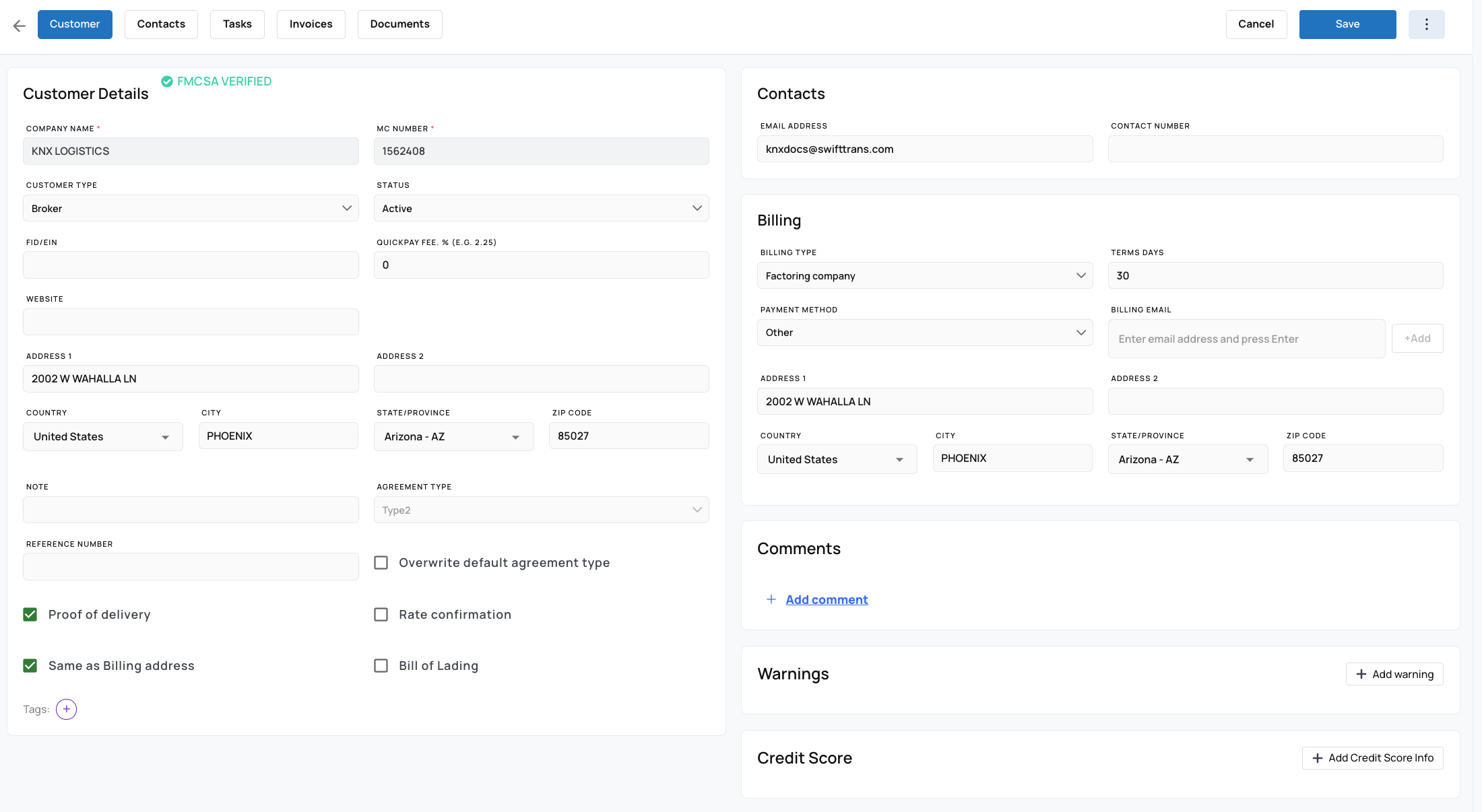
Fill in both customer and billing information accurately, as these details are used across multiple sections and are essential for proper invoicing and factoring integrations.
Customer Information:
-
Customer Name: Enter the full name or company name.
-
Customer ID: For Brokers, enter their MC Number under this section.
-
Contact Details: Include the contact number and email address.
Billing Information:
-
Billing Type: Determines how invoices are processed and sent:
-
None: No automated billing process.
-
Manual: Invoices must be sent manually.
-
Email: Invoices are emailed directly to the customer.
-
Factoring Company: Invoices will be sent to a connected factoring company.
-
-
Billing Terms: Enter payment terms in days (e.g., Net 30).
-
Billing Address: Provide the correct billing address. If it’s the same as the customer’s address, click Copy to Billing Address.
Step 3: Save the Customer
Before saving:
-
Review all details carefully for accuracy and completeness.
-
Click Save to create the customer profile.
The newly added customer will now appear in your CRM list and be available for selection when creating loads or invoices.
Option 2: Create or Import Customers from Other Sections
You can also add customers:
1. When creating a new load, you can directly add a new customer if it doesn’t already exist in the system. The details entered here will automatically be saved to your CRM database.
We hope this article was helpful. However, if you have any further questions, please don't hesitate to reach out to our Live Support.
Comments
0 comments
Please sign in to leave a comment.