
If you're already integrated with QuickBooks, you can easily send invoices from Datatruck to QuickBooks in just a few steps. Follow the guide below:
Step 1: Go to the Invoices Section
-
From the main menu, navigate to Accounting > Invoices.
Step 2: Create a Batch or Open an Existing One
-
Click on the “Create Batch” button in the top right or open the existing one.
Step 3: Send the Batch
-
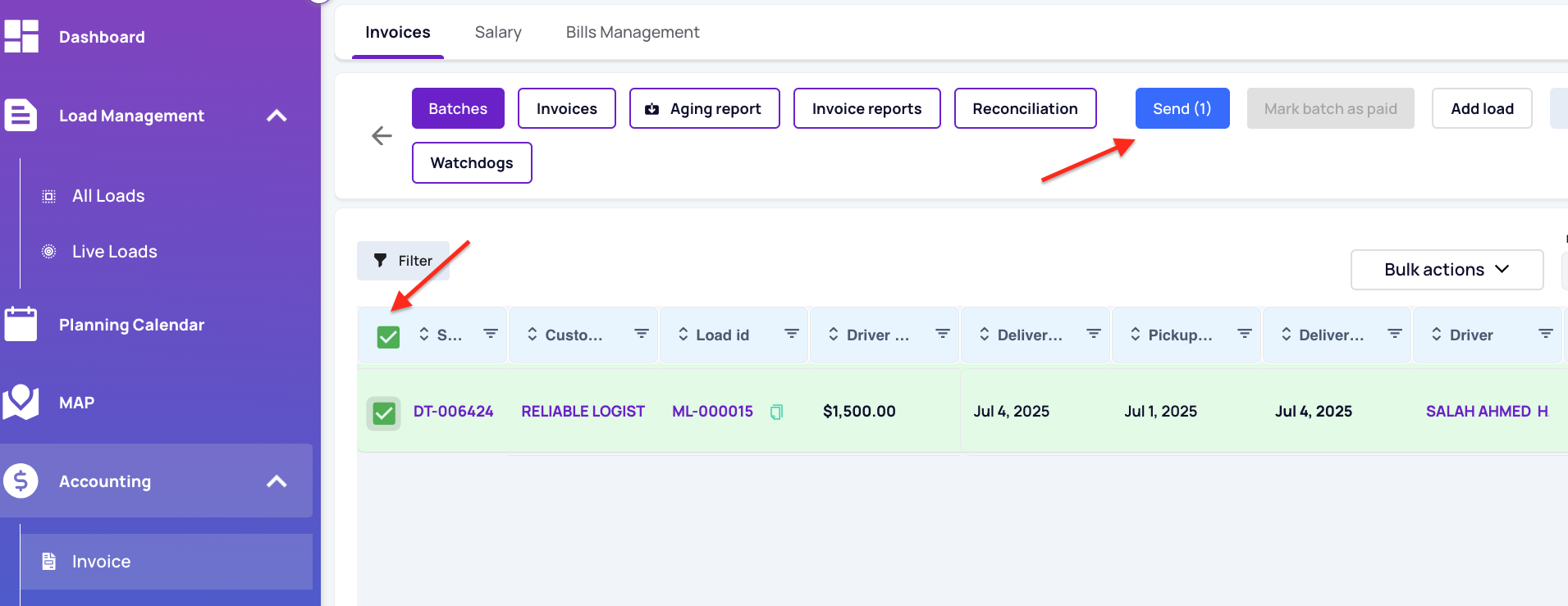
Select the invoices you want to send to QuickBooks.
-
Once you’ve selected the invoices, click on the “Send” button.
-
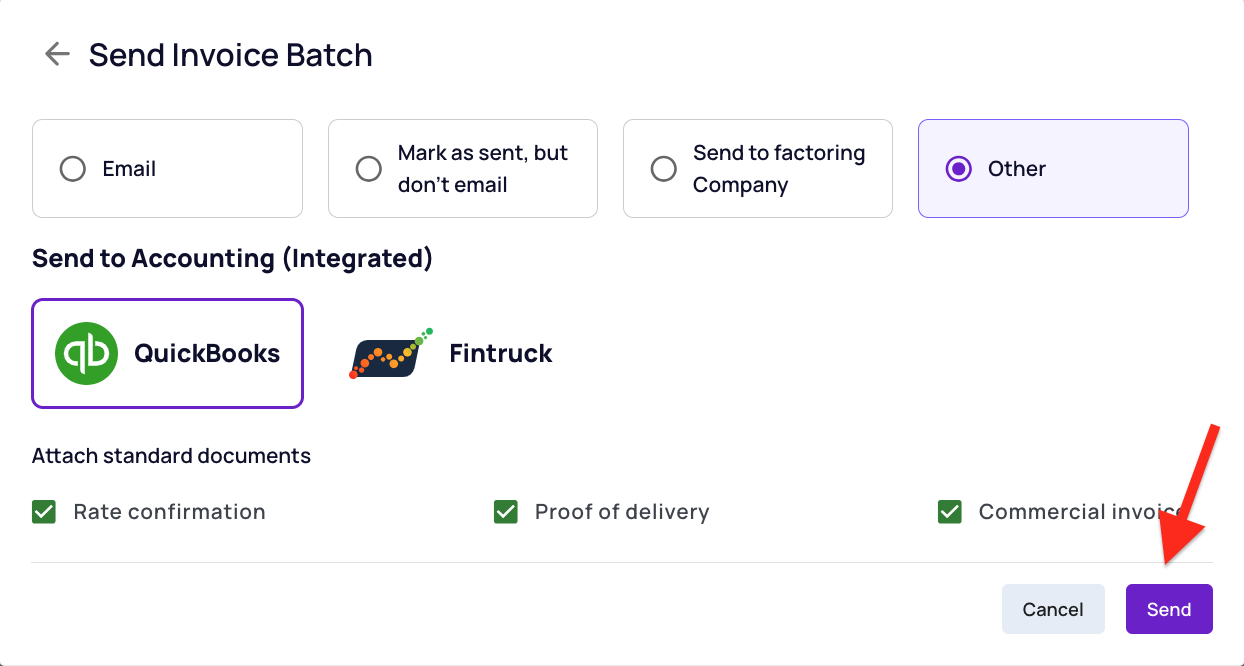
Select “Others” from the options.
Step 4: Choose QuickBooks
-
From the options, select QuickBooks and click Send.
-
The selected invoices will be sent to your connected QuickBooks account.
Confirmation
-
After sending, you'll receive a confirmation message once they've been sent.
-
You can check the "Notes" and "Is Sent" Column.
-
You can also go to QuickBooks and verify that the invoices have been successfully imported.
We hope this article was helpful. However, if you have any further questions, please don't hesitate to reach out to our Live Support.
Comments
0 comments
Please sign in to leave a comment.