
Adding notes to a salary settlements in Datatruck can help provide important context regarding deductions, reimbursements, or other adjustments made in the settlement. You can also attach documents to support those notes for transparency and record-keeping.
Follow the steps below to add notes to a driver's statement:
Where to Find the Notes Section
- Go to Accounting > Salary > Batches
- Select the relevant batch and open the driver’s settlement.
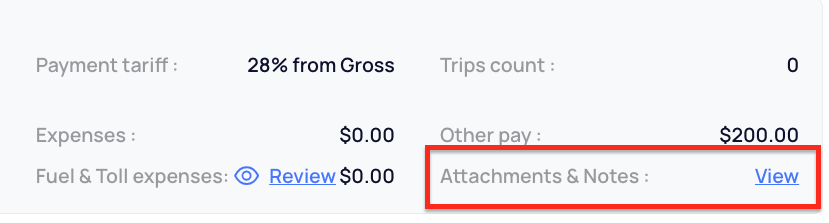
- On the right side of the settlement summary, look for “Attachments & Notes”.
- Click View next to it.
How to Add a Note
- After clicking View, a side-screen will open allowing you to:
- Type your note (e.g., reason for a deduction or any internal clarification).
- To include this note on the driver's statement, make sure to check the box labeled "Show note on the driver statement".
- Optionally, attach a file (e.g., invoice, receipt, loan agreement).
2. Once done, click Save.
Display on Statement
- If the "Show note on the driver statement" checkbox is selected, the note will appear on the PDF version of the driver’s settlement.
- If left unchecked, the note will remain visible only internally within Datatruck. This is useful for keeping internal remarks private while still having them documented.
We hope this article was helpful. However, if you have any further questions, please don't hesitate to reach out to our Live Support.
Comments
0 comments
Please sign in to leave a comment.