
Some trucking companies work with subcontractor drivers. In these cases, there is a separate truck owner and a separate driver assigned under one carrier. The carrier, identified by an MC number, assigns loads to the driver and pays them according to the agreement. The truck vendor (owner) is also paid based on predefined agreements at the end of the settlement period.
In this setup:
-
Truck Owner / Vendor is considered the investor.
-
Driver is considered the operator or subcontractor.
Step 1: Assign the Truck Owner to the Truck
To calculate truck owner statements, first assign the truck owner to the truck in the system. This ensures the owner is linked to the vehicle for statement generation.
Step 2: Add Vendor Deductions (Company Fee)
Follow these steps to apply a company fee or any other vendor-specific deduction:
-
Go to Vendors from the left-hand menu.
-
Select the vendor you wish to apply the deduction to.
-
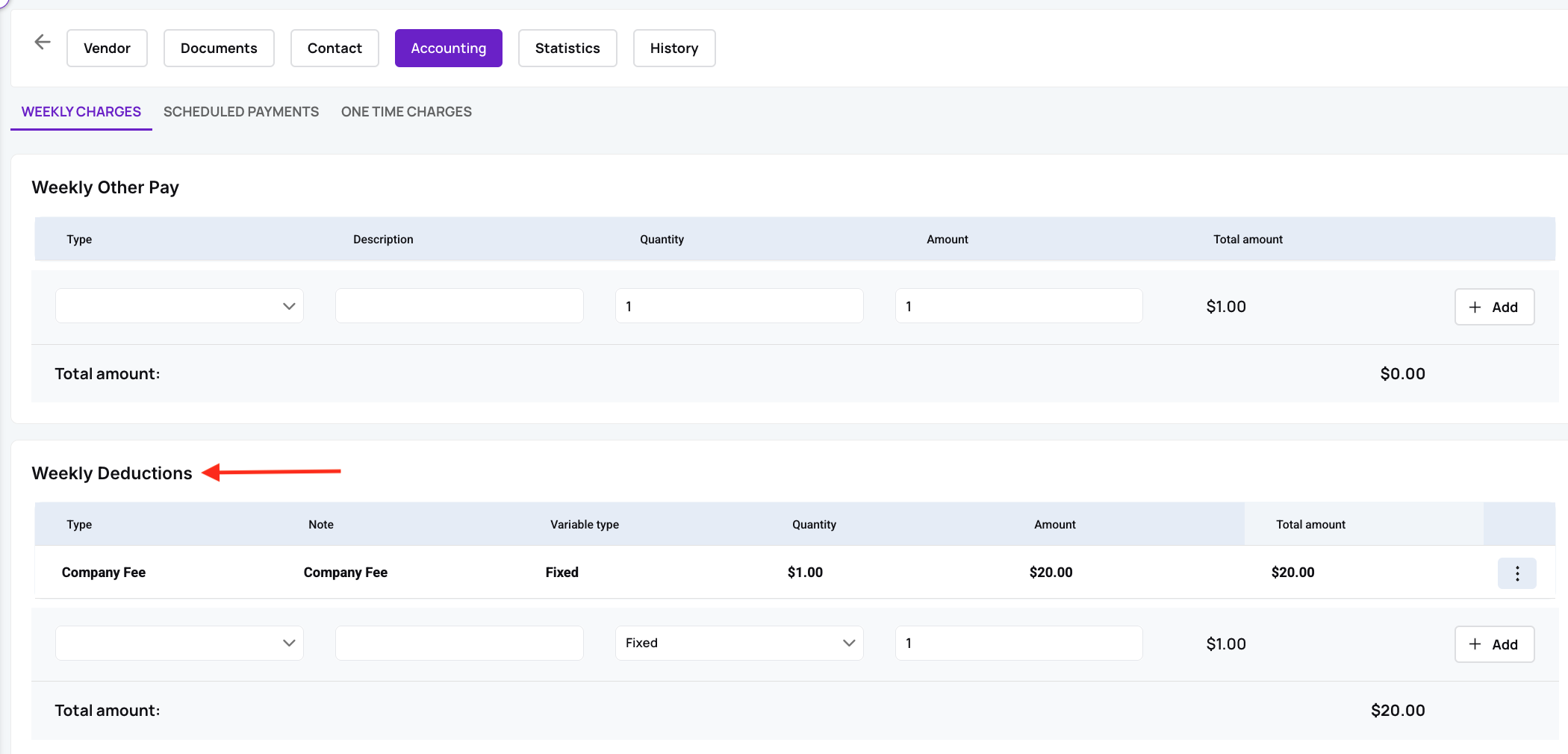
Open the Accounting tab in the vendor’s profile.
-
Under Deductions, click Add Deduction.
-
Enter the Company Fee (for example, “Company Fee 10%” or “Company Fee 20%”).
-
Specify the deduction rate or amount as required.
Step 3: Apply to Billing
Once set up, this fee will automatically deduct the specified percentage (e.g., 10%) from the Total Gross amount in the Bill Statement for that vendor.
Step 3: Create a Batch in Bills Management
-
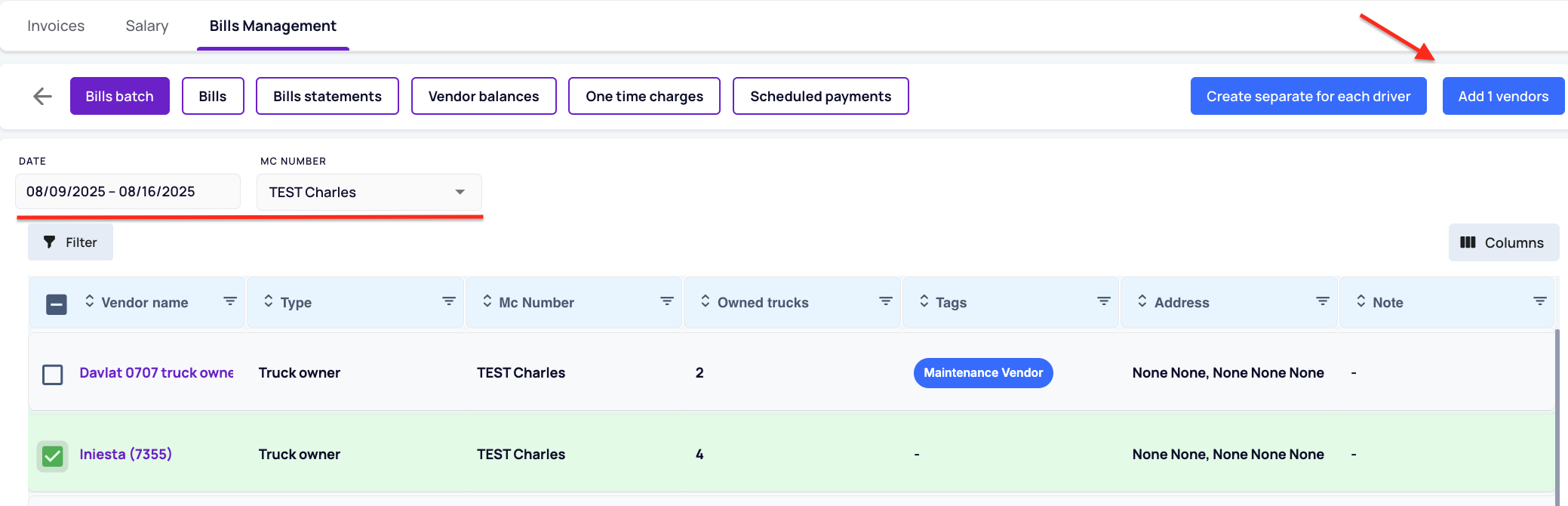
Go to Bills Management → Bills Batch tab.
-
Click Create New Batch.
-
Select the appropriate time period and choose the relevant vendor(s).
Step 4: Add Driver Statements
-
Open the vendor’s batch.
-
Add the corresponding driver statements for the selected period.

Step 5: Review and Adjust
-
Any other deductions for the truck owner
Step 6: Generate and Finalize the Statement
-
Review the PDF Statement for accuracy.
-
If all details are correct, post the batch and send it to the vendor.
We hope this article was helpful. However, if you have any further questions, please don't hesitate to reach out to our Live Support.

Comments
0 comments
Please sign in to leave a comment.