
Generating an IFTA report is essential for tracking fuel purchases and miles driven across different jurisdictions for accurate tax reporting. With the Samsara integration in DataTruck, this process becomes simple and efficient..
Step 1: Navigate to the IFTA Reports Section
From your Dashboard, go to Reports.
Select the IFTA Reports tab at the top navigation bar.
Step 2: Create a New IFTA Report
Click the “Create new” button at the top right corner of the screen.
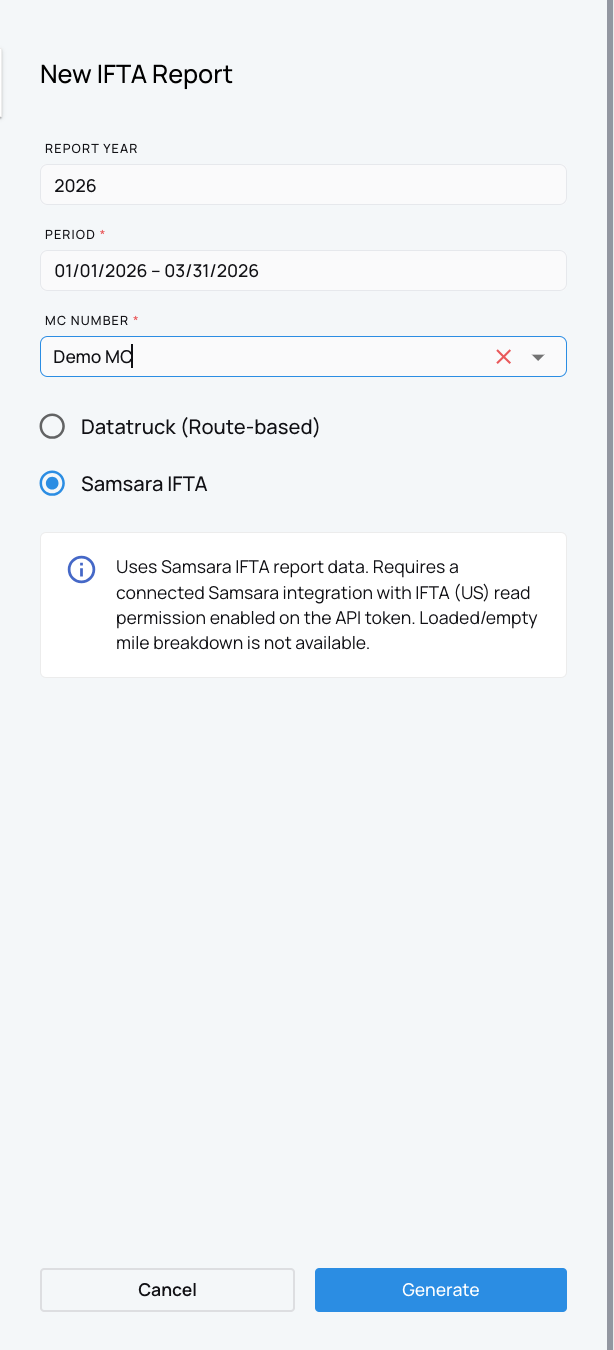
In the New IFTA Report panel (appearing on the right), fill out the required fields:
Report Year: Select the year you’re reporting for (e.g., 2025).
Period: Enter the date range for your report (format: MM/DD/YYYY – MM/DD/YYYY).
MC Number: Choose the motor carrier number from the dropdown menu.
Choose "Samsara IFTA"
Once the information is complete, click Generate to create your report.
Step 4: Access the Report by State or by Truck
The generated report can be viewed in two detailed formats:
a) By State
The By State tab summarizes travel and fuel usage across all states traveled.
b) By Truck
The By Truck tab provides a breakdown of miles and fuel by vehicle unit.
Step 5: Export or Re-Generate Reports
To save or share your report, click Export or Export as PDF.
If new data has been added or corrected, click Re-generate to update your report with the latest information.
This ensures your IFTA report always reflects the most accurate and current data.
We hope this article was helpful. However, if you have any further questions, please don't hesitate to reach out to our Live Support.
Comments
0 comments
Please sign in to leave a comment.