
Accurate fuel data is essential for driver settlements, IFTA reporting, and company expense tracking. While Datatruck automatically syncs fuel transactions from your fuel provider, there may be instances where you need to manually refresh the data. This guide explains how to do so.
Manual Syncing of Fuel Transactions
If fuel transactions are not appearing automatically, you can manually sync them by following these steps:
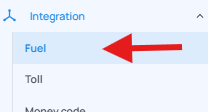
Step 1: Navigate to the Fuel Integration
Go to Integrations from the left menu.
Select Fuel.
Click on Transactions.
Step 2: Initiate the Sync
Click the Sync button located at the top right.
Choose the MC Number linked to the fuel account.
Select the Company.
Specify the Date Range for the transactions you want to pull.
Step 3: Submit the Sync Request
After filling in the required fields, click Submit to begin the sync.
The system will import all available fuel transactions from your provider for the selected date range.
When to Use Manual Sync
You may need to manually sync fuel transactions when:
Transactions are not auto-syncing
Recent transactions are missing or incomplete
You want to refresh data for a specific time period
You need to verify that all fuel expenses are captured accurately
We hope this article was helpful. However, if you have any further questions, please don't hesitate to reach out to our Live Support.
Comments
0 comments
Please sign in to leave a comment.