
Step 1: Get Your FTP Credentials from ProFunding
To begin, contact your ProFunding representative and request your FTP login credentials.
These typically include:
Username
Password
Host
Email Template:
To: [insert your factoring company email]
Subject: Request for FTP Integration Access
Body:
Good afternoon,
We are setting up a new TMS system, Datatruck. Please provide the FTP credentials to enable integration, especially:
- Host
- Username
- Password
- Remit Notice
Our MC number is [insert MC number here].
Please let us know if any additional information is required.
[Your Company Name]
[Your Contact Information]
Step 2: Set Up the Integration in Datatruck
Log in to your Datatruck account through the web https://app.datatruck.io
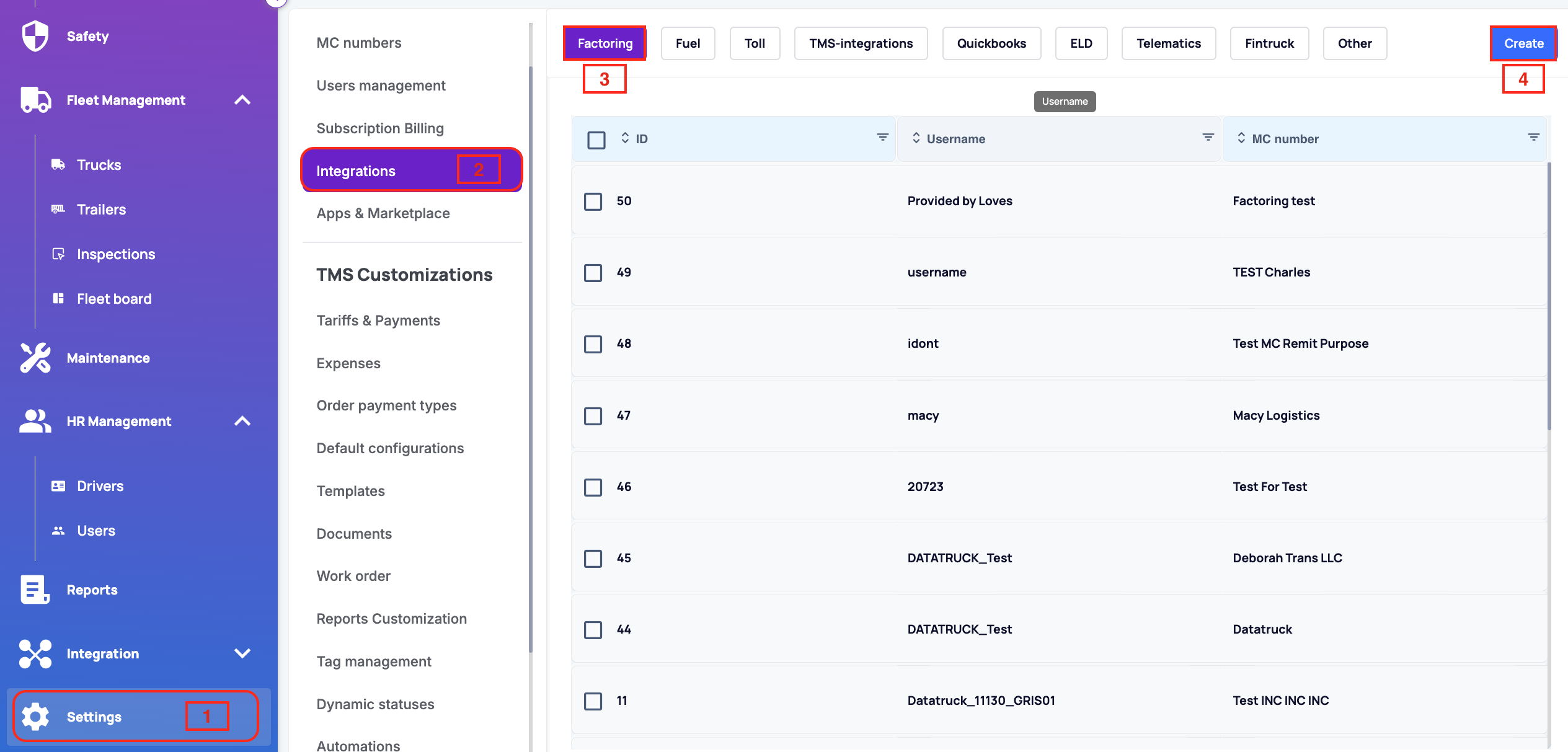
Go to Settings.
Click on the Integrations tab.
Go to the Factoring section.
Select Create to begin a new integration.
Step 3: Enter the Required Details
Fill in all relevant fields using the FTP credentials you received from ProFunding. These details allow Datatruck to connect and sync with your Loves factoring account.
Factoring Company: Choose WinFactor from the dropdown
Username: Provided by ProFunding
Password: Provided by ProFunding
MC Number: Select the desired MC
Billing Address: Enter your preferred information
Remit Notice: If Provided by ProFunding
Click to Save the integration.
That's how setting up the ProFunding Factoring Integration would be completed.
We hope this article was helpful. However, if you have any further questions, please don't hesitate to reach out to our Live Support.
Comments
0 comments
Please sign in to leave a comment.