
This article covers two related actions: canceling a load and archiving it. Canceling removes the load from active operations. Archiving moves it out of your main load list for a cleaner workspace. Archiving requires the load to be cancelled first.
Part 1: Canceling a Load
A load can be cancelled at any point before it reaches Delivered status.
Single Load
Go to Load Management.
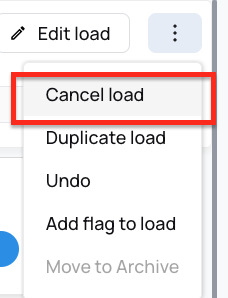
Click the three-dot menu on the right side of the load.
Click Cancel Load to confirm.
Multiple Loads (Bulk Cancel)
Go to Load Management.
Check the boxes next to all loads you want to cancel.
Click Bulk Actions and select Cancel Loads.
Canceling a Delivered Load
If the load is already in Delivered status:
Open the load and click the three-dot menu in the top-right corner.
Click Undo to revert the status back to In-Transit.
Then follow the steps above to cancel.
Note: If the load is part of an Invoice Batch or Salary Batch, you must delete the batch first before you can use Undo.
Part 2: Archiving a Load
Once a load is cancelled, it can be archived to remove it from your active load list.
Go to Load Management and locate the cancelled load.
Click the three-dot menu on the right side of the load.
Click Move to Archive.
The load is now archived and will no longer appear in your main load list.
We hope this article was helpful. However, if you have any further questions, please don't hesitate to reach out to our Live Support.
Comments
0 comments
Please sign in to leave a comment.