
Setting up Relay as a fuel integration in Datatruck is a simple process. Once configured, the system will automatically pull fuel data from Relay.
Step 1: Getting the API Credentials
Write an email to the relay representative to get the credentials.
Template
To mike@relaypayments.com
Subject: Request for Relay API Integration with Datatruck
Our company, [Company Name], is currently using the Datatruck TMS platform to manage our operations. We would like to request the setup of the Relay Fuel Integration in order to automatically sync our fuel transaction data from Relay into Datatruck.
Please provide the necessary API credentials or access details required for this integration. The Datatruck team will coordinate with you directly to complete the setup once the credentials are received.
Below are our company details for your reference:
Company Name: [Insert company name]
Main Contact: [Full name, position]
Email: [Contact email]
Phone: [Contact phone number]
If you have any questions, please feel free to include the Datatruck support team in your response.
Thank you for your assistance.
Step 2: Open the Fuel Integration Settings
-
From your Datatruck dashboard, go to Settings.
-
Click on the Integration tab.
-
Select the Fuel section at the top.
-
Click on the Create button to add a new integration entry.
Step 3: Create the Integration
-
In this section, fill out the required fields:
-
Company: Relay
-
Host: relay.com
-
Port: 22
-
Username: test (same for everyone)
-
Password: test (same for everyone)
-
Token: Provided by Relay
-
MC number: Choose your desired MC number
-
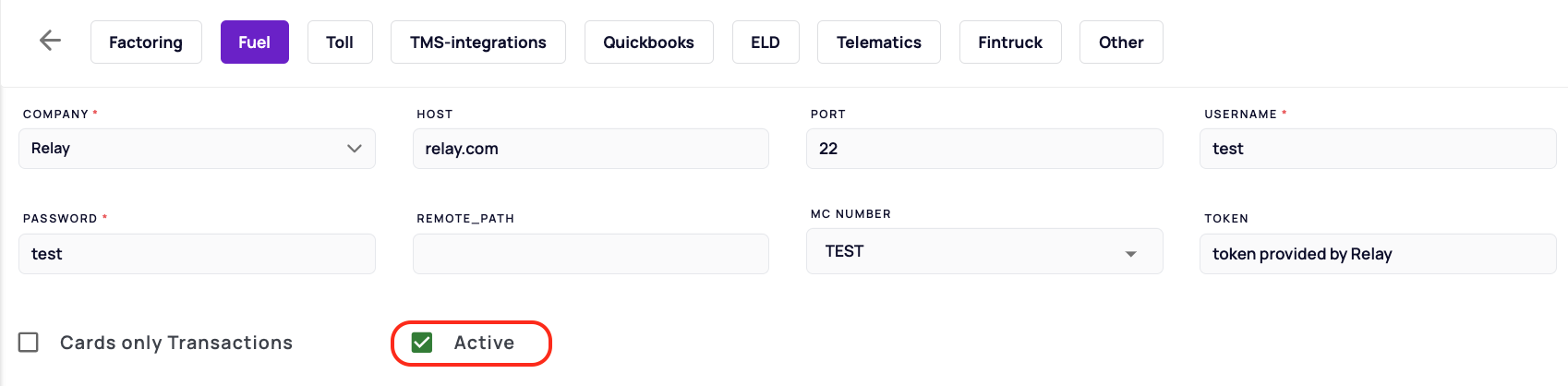
Step 4: Activate and Save
-
Check the box labeled Active to enable the integration.
-
Click Save to complete the setup.
Once saved, Datatruck will begin retrieving fuel data from Relay automatically at morning, everyday.
Step 5: Manually Sync Your Fuel Transactions
Follow these steps to manually sync your fuel transactions with Relay:
Step (i):
Go to Integrations then Fuel from the main menu.
Step (ii):
Click on the Sync button.
Step (iii):
In the sync window, select the following:
-
MC Number: Select your company’s MC number.
-
Date Range: Choose your desired date range.
-
Company: Select Relay from the dropdown menu.
To Add Relay ID to Datatruck:
1. You go to Integration> Fuel> Cards and select "Create card" button. Now add the information in the fields as:
Number: 16 Digit Relay ID on the relay account
Company: Relay
MC Number: Choose MC
Assigned Driver: Select Driver

2. Tick on Billable and Active checkbox and save it.
We hope this article was helpful. However, if you have any further questions, please don't hesitate to reach out to our Live Support.
Comments
0 comments
Please sign in to leave a comment.